 GITEX Dubai
 Ai Everything
 LEAP26
 AI
AI Saudi Arabia
 UAE
UAE Egypt
EgyptStop Repeating Yourself: Super Shortcuts Makes Your Mac Remember the Work!

10 min
Super Shortcuts cuts the “by-hand tax” of repetitive Mac work, with no code or cloud.
One keyboard command can open apps, format text, run Terminal tasks, or mute meetings.
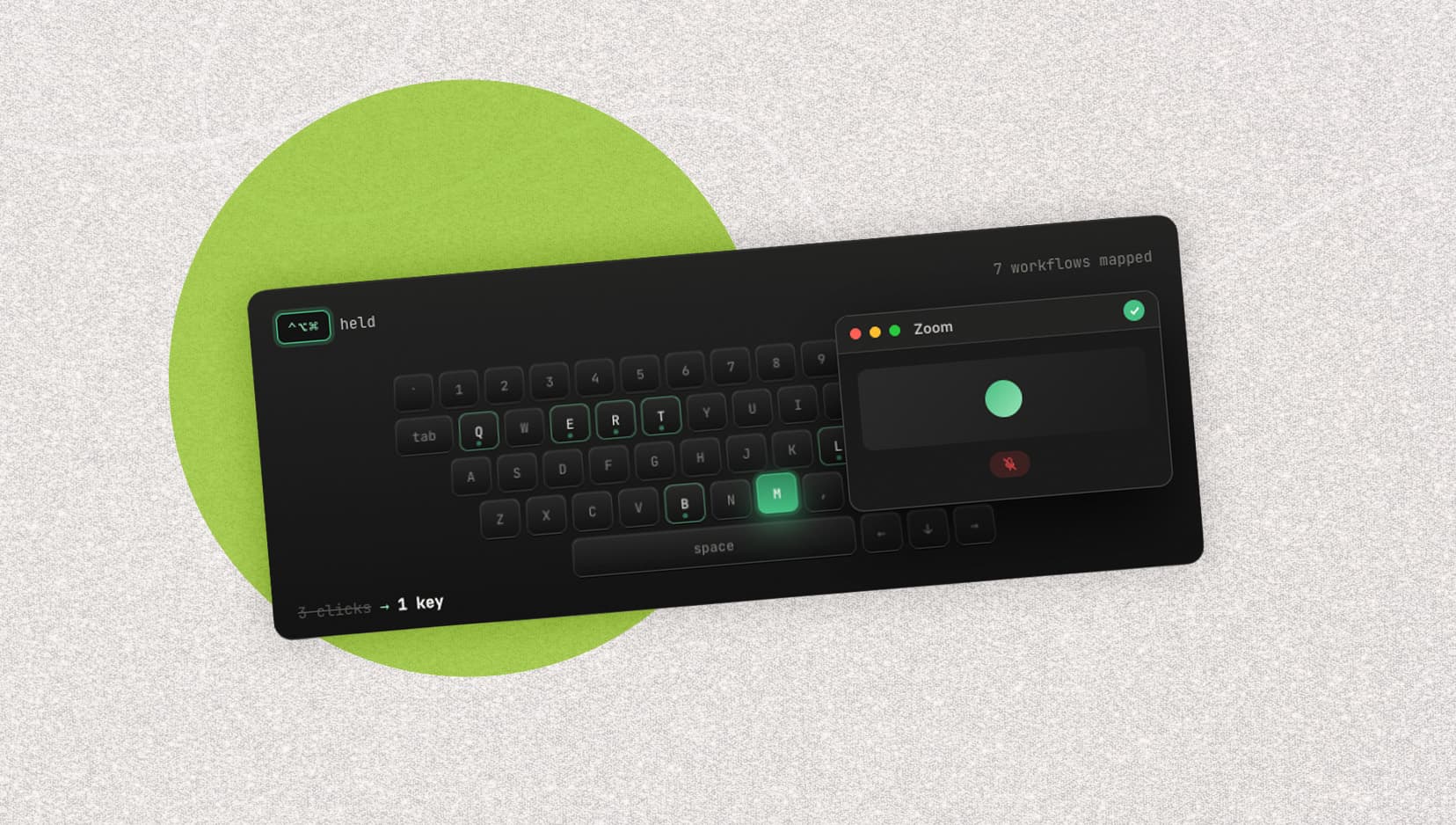
Its “Hyper key” and context-aware shortcuts change actions by app, with a handy cheat sheet.
Unlike broad AI agents, it runs exact local workflows quickly, predictably, and more privately.
A free version is available, while Pro adds unlimited workflows and stronger click automation.
The local Mac automation app turns repetitive clicks, keystrokes, and app-switching routines into context-aware commands without requiring code, a cloud account, or an AI agent.
Productivity is rarely lost through one dramatic interruption. More often, it disappears a few seconds at a time.
Opening the same group of applications every morning, navigating through menus to format text, copying links between tools, preparing routine replies, rearranging windows, and searching for the mute button during a meeting may seem insignificant individually. Repeated dozens of times, however, these actions become a persistent tax on attention.
Super Shortcuts is a macOS automation app designed to remove that “by-hand tax.” It allows users to combine frequently repeated actions into workflows and activate them with a single keyboard command.
Its proposition is deliberately simple: if a task follows the same steps every time, the computer should be able to remember and perform those steps for you.
A Shortcut That Can Do More Than Open an App
Conventional keyboard shortcuts usually trigger one predefined action. Command-C copies text, for example, while Command-V pastes it.
Super Shortcuts extends this idea by allowing one command to trigger an entire sequence. A workflow can press keys, click interface elements, type text, open applications, launch files or URLs, and activate existing Apple Shortcuts.
A user could create commands that:
- Open the applications and browser tabs needed every morning
- Format selected text in a particular way
- Copy a pull-request link in Markdown format
- Run a recurring command in Terminal
- Paste, clean, and format information in a spreadsheet
- Insert a standard response into a message
- Open the same set of tools used for a client or project
- Mute or unmute a meeting without locating its window
- Trigger a more complex workflow built in Apple Shortcuts
The goal is not to automate an entire profession. It is to remove the predictable, repetitive steps surrounding meaningful work.
This distinction gives Super Shortcuts a focused position in a market increasingly filled with broad AI assistants. Instead of interpreting an open-ended request and deciding what to do, it executes the exact sequence configured by the user.
Turning Caps Lock Into an Automation Layer
At the center of the experience is the “Hyper key,” a combination of Control, Option, and Command.
Because relatively few macOS applications use this combination by default, it creates a largely empty layer of keyboard commands. Super Shortcuts can map individual workflows to keys inside this layer without frequently colliding with existing application shortcuts.
The app also offers the option of using Caps Lock to access the Hyper key. Users can hold Caps Lock and tap another key to trigger an automation, turning an often-underused keyboard button into a control layer for their workflows. Double-tapping can preserve the traditional Caps Lock function.
For example:
- Hyper-R could format selected text in Google Docs
- Hyper-L could copy a link from GitHub
- Hyper-T could run tests in Terminal
- Hyper-M could control a meeting microphone
- Hyper-1 could launch a complete morning workspace
The important feature is not only that these commands are customizable. They can also be context-aware.
The Same Key Can Perform Different Actions in Different Places
Keyboard automation becomes difficult to manage when every workflow requires a unique combination. As the number of commands grows, users either run out of convenient keys or forget what each shortcut does.
Super Shortcuts addresses this by allowing commands to respond to the user’s current context. The same key can perform one action in GitHub, another in Google Docs, and something else in a different application.
This creates a form of situational keyboard vocabulary.
A letter such as “L” might copy a pull-request link while the user is viewing GitHub but trigger another link-related action elsewhere. Because each workflow is scoped to an application or website, users do not necessarily need to invent a separate combination for every automation.
The app also displays a visual cheat sheet when the Hyper key is held. Available commands appear on an on-screen keyboard, with the relevant workflows highlighted according to the current application or website.
This is a thoughtful solution to one of the biggest problems with keyboard-driven productivity tools: shortcuts save time only when people can remember them.
Building Automations Without a Programming Language
Powerful Mac automation tools have existed for years, but many require users to understand triggers, variables, conditions, scripting concepts, or complex configuration interfaces.
Super Shortcuts aims for a lower barrier to entry. A workflow is assembled from recognizable actions such as pressing a key, typing text, clicking an element, opening something, or activating another shortcut.
Its website demonstrates the process with a Google Docs formatting example. Instead of repeatedly opening a menu and selecting a text color, the user records those steps once and assigns them to a keyboard command. The app can then replay the same sequence whenever the action is needed.
Starter templates are also available for environments including Google Docs, GitHub, VS Code, meetings, and system-wide tasks. Users can install a template, test it, and modify it instead of beginning with an empty workflow.
This template-first approach matters because identifying what to automate can be harder than building the automation itself. Ready-made examples help users recognize the repetitive patterns hidden inside their own routines.
More Reliable Point-and-Click Automation
Automating interface clicks can be fragile. A workflow based only on fixed screen coordinates may break when a window moves, a display resolution changes, or an application redesigns its layout.
Super Shortcuts’ Pro plan includes an “Element Inspector,” described as a point-and-click automation feature designed to identify interface elements more reliably.
Instead of merely remembering that a button appeared at a particular position, an element-aware system can attempt to locate the actual control. This should make workflows more resilient across different window arrangements, although reliability will still depend on how individual applications expose their interfaces and how significantly those interfaces change.
For users, this distinction can determine whether automation becomes a dependable daily tool or an occasional experiment that constantly requires repair.
A Deterministic Alternative to AI Agents
The rise of AI agents has encouraged the idea that users should simply describe a goal and allow software to determine the necessary steps.
That approach can be valuable for complex, unpredictable work. It can also introduce latency, usage costs, uncertainty, and privacy questions. An agent may interpret the same instruction differently or take an unexpected path through a task.
Super Shortcuts is built for another category of work: actions that need to happen quickly and identically every time.
A configured workflow does not need to reason about how to format text or which applications to open. It follows the steps selected by the user. This makes the application less flexible than an autonomous agent, but potentially more predictable for high-frequency routines.
The two approaches are not mutually exclusive. AI can handle open-ended research, drafting, or problem-solving, while deterministic automation manages the repeated operational steps around that work.
In this sense, Super Shortcuts represents a useful counterpoint to the current enthusiasm for adding AI to every productivity task. Sometimes the best automation does not need to think. It only needs to remember.
Local Processing as a Product Feature
Privacy is another central part of the platform’s positioning.
Super Shortcuts says its workflows run locally on the user’s Mac, without requiring a cloud account. According to the company, voice commands are also transcribed on the device rather than uploaded for remote processing.
Local execution offers several practical advantages:
- Workflows can continue operating without an internet connection
- Routine actions do not require cloud-processing delays
- Users do not consume AI tokens each time a command runs
- Workflow information remains on the computer
- Commands can be opened and inspected instead of operating as an invisible service
The app still requires macOS Accessibility permission—and Automation permission for certain actions—because it needs to interact with other applications. These are powerful permissions, so users should understand why they are needed and review them in System Settings.
Running locally reduces certain privacy risks, but users should still apply the same care they would give any application capable of controlling interface elements and entering information on their behalf.
Built for Developers, Accountants, and Constant Context-Switchers
Although keyboard automation is often associated with technical users, Super Shortcuts is positioning the product for a broader professional audience.
Developers could automate repository navigation, testing commands, and the preparation of links for issue trackers or team messages.
Accountants and operations teams could create routines for cleaning pasted information, applying recurring spreadsheet formats, opening client folders, or preparing standard status responses.
Entrepreneurs and managers could launch complete workspaces for different projects, record notes without switching applications, or prepare the tools needed for recurring meetings.
Writers and content teams could automate formatting, content-management tasks, frequently used text, and repetitive publishing steps.
The common characteristic is not the user’s profession. It is the presence of small actions that occur frequently and follow a stable pattern.
Measuring Whether Automation Actually Saves Time
Productivity applications frequently promise large time savings without showing whether the user has benefited.
Super Shortcuts says its dashboard records workflow executions and presents figures such as estimated time saved, the user’s most frequently activated commands, and usage streaks.
According to Super Shortcuts, users can save around two hours per week by automating the repetitive tasks that quietly accumulate throughout the working day. The exact benefit will naturally vary by workflow and usage, but the estimate illustrates how small time savings can compound when the same actions are repeated dozens of times each week.
These numbers should be treated as estimates rather than precise measurements of economic value. However, tracking actual use can help answer an important question: is a workflow genuinely useful, or was it configured once and forgotten?
It can also help users identify which automations provide the greatest return. A command that saves only five seconds but runs 50 times each day may be more valuable than an elaborate workflow used once a month.
Free Access and a One-Time Pro License
Super Shortcuts currently offers a free version supporting up to 20 workflows, access to every action type, starter templates, Hyper-key activation, and the visual cheat sheet.
Every installation also includes a 14-day trial of the Pro features.
The Pro edition is advertised at a launch price of $39 as a one-time purchase, with a planned regular price of $49. It adds unlimited workflows, voice control, the Element Inspector, the complete template library, and lifetime updates. The company also advertises a 30-day money-back guarantee.
The application supports macOS 12 Monterey or later and works on both Apple Silicon and Intel-based Macs.
Pricing and plan details can change, so readers should confirm the current offer on the official Super Shortcuts website.
Automation at the Scale of Everyday Friction
The most compelling idea behind Super Shortcuts is that meaningful productivity gains do not always require a revolutionary system.
Sometimes the best opportunity is hidden in the ordinary actions people have stopped noticing: navigating the same menu, preparing the same reply, opening the same tabs, or switching between the same applications.
Super Shortcuts turns those patterns into reusable commands while keeping execution local and predictable. Its context-aware keyboard layer and visual cheat sheet also address the practical problem of managing a growing collection of automations.
The platform will appeal most to Mac users willing to invest a few minutes in examining how they work. It cannot identify every inefficient routine automatically, and its value will depend on whether users build commands they genuinely need.






But that initial effort could have a cumulative return. A workflow created once can run hundreds or thousands of times.
In a technology landscape fascinated by increasingly autonomous AI systems, Super Shortcuts makes a quieter argument: before asking a machine to think on your behalf, let it handle the clicks you should never have needed to repeat.